


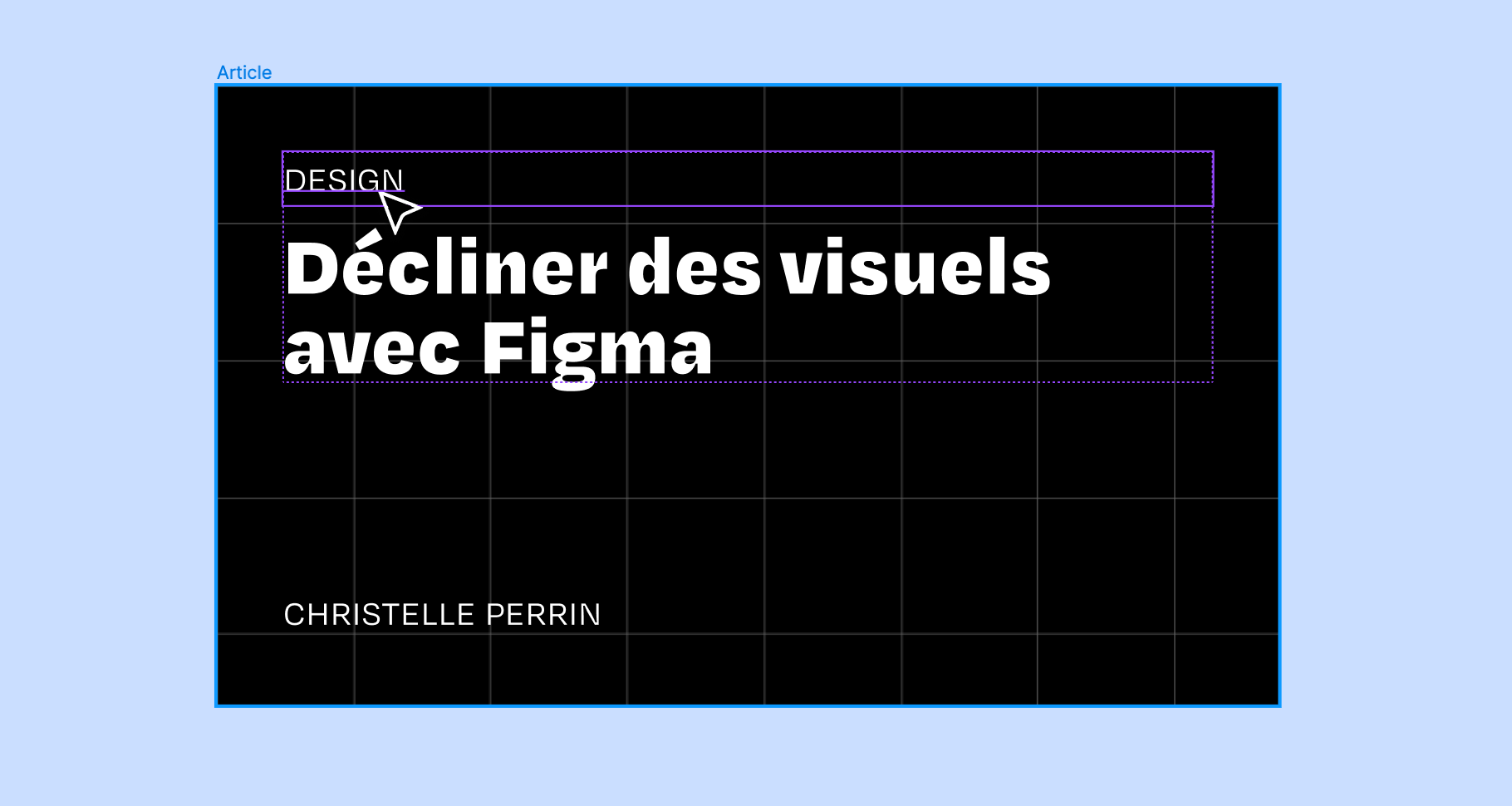
Say no more, and let me introduce you to a tool that shines deep in our hearts: ✨ Figma ✨, which has largely put the competition out of business in just a few years through the combined force of software and word of mouth — which I'm contributing to here.
We use this software daily at Médianes, our studio, to develop website mockups, newsletters, visuals, presentations, and more. It's also a tool we recommend for creating communication design templates — on Instagram, for opengraph images or even for printed posters.
Not Canva?
The online design tool Canva is really great for getting started with visual creation—it's easy to learn and rather fun, with a huge library of stickers—but it falls short on rigor and optimization. It's tedious to maintain the same sizes and object placements from one design to the next, and it's difficult to get an overview of your work. It's harder to produce outputs that fully align with your brand guidelines and media style while preserving a sense of originality. On top of that, you need to pay for the "Pro" plan (€11.99/month) to save your colors and logos or use your own fonts—features that should be basic.
Before Figma, we relied more on Adobe InDesign, software that was too expensive for many of our clients. We also lacked an overview and needed more time to set up and customize templates.
There is an open-source alternative to Figma: Penpot, which adopts Figma's logic and features, though somewhat less powerful.
Why is Figma so convenient?
Figma was initially designed for creating website mockups. However, these are typically lengthy, challenging projects that involve extensive back-and-forth. But if you can do the most, well, you know the rest.
Everything is set up to make your life easier:
- Each element can be governed by a component, where a rule is established and then cascaded throughout. Rules can include fonts, sizes, and positions. You can also program switches that allow you to show or hide fields, for example.
- You can directly prepare carousels with images spanning from one screen to another, or simply by viewing all your screens side by side.
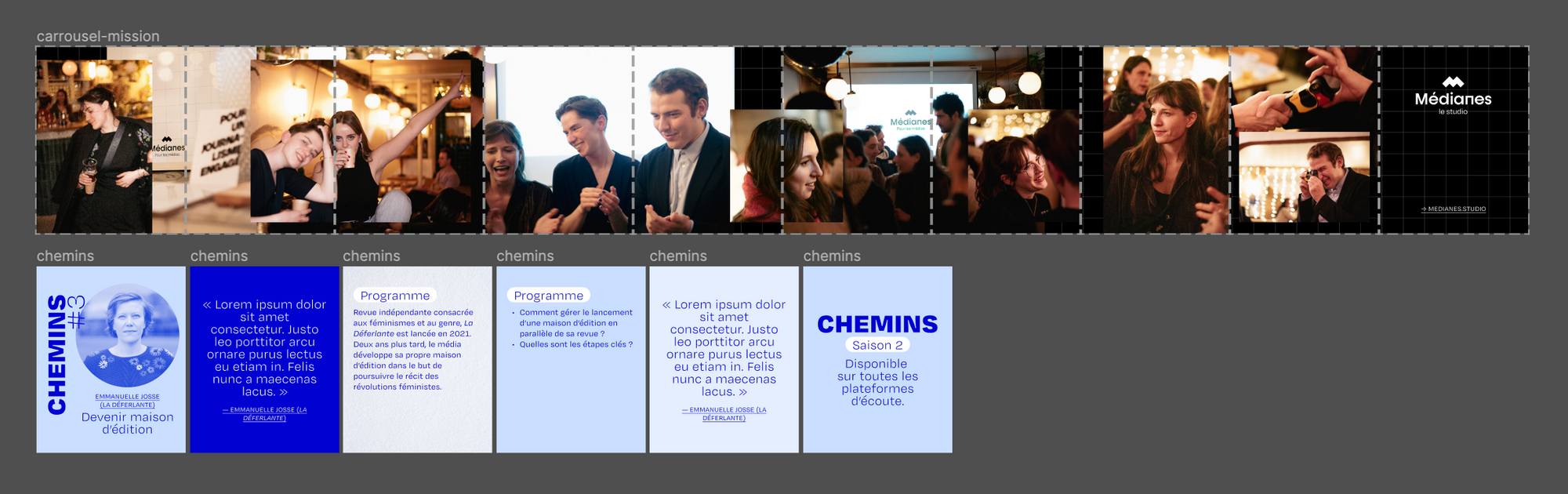
At Médianes, to streamline the creation and distribution of visuals on social networks, I calibrated a set of templates for the team that they could use daily. This allowed non-designers to produce visuals independently while maintaining our artistic direction and serving our readers.
Example of switches in Middle stories: here you can show or hide the preheader, title, text, emojis or illustrations. You can easily choose which illustration or emoji to display in the component details.
- In a separate folder (components), you can also save vector objects — a logo, for example, which will display at the same size every time it's used.
- Any object can be placed in an automatic and responsive layout (auto lay-out) that adapts containers to their contents, and conversely, the spacing between elements.
- Text styles, colors, gradients, drop shadows, outlines, grids — everything can be saved, which ensures consistency and makes it easy to change your mind: modifying a style updates all the places where that style is used, and it's easy to switch between styles to try different things.
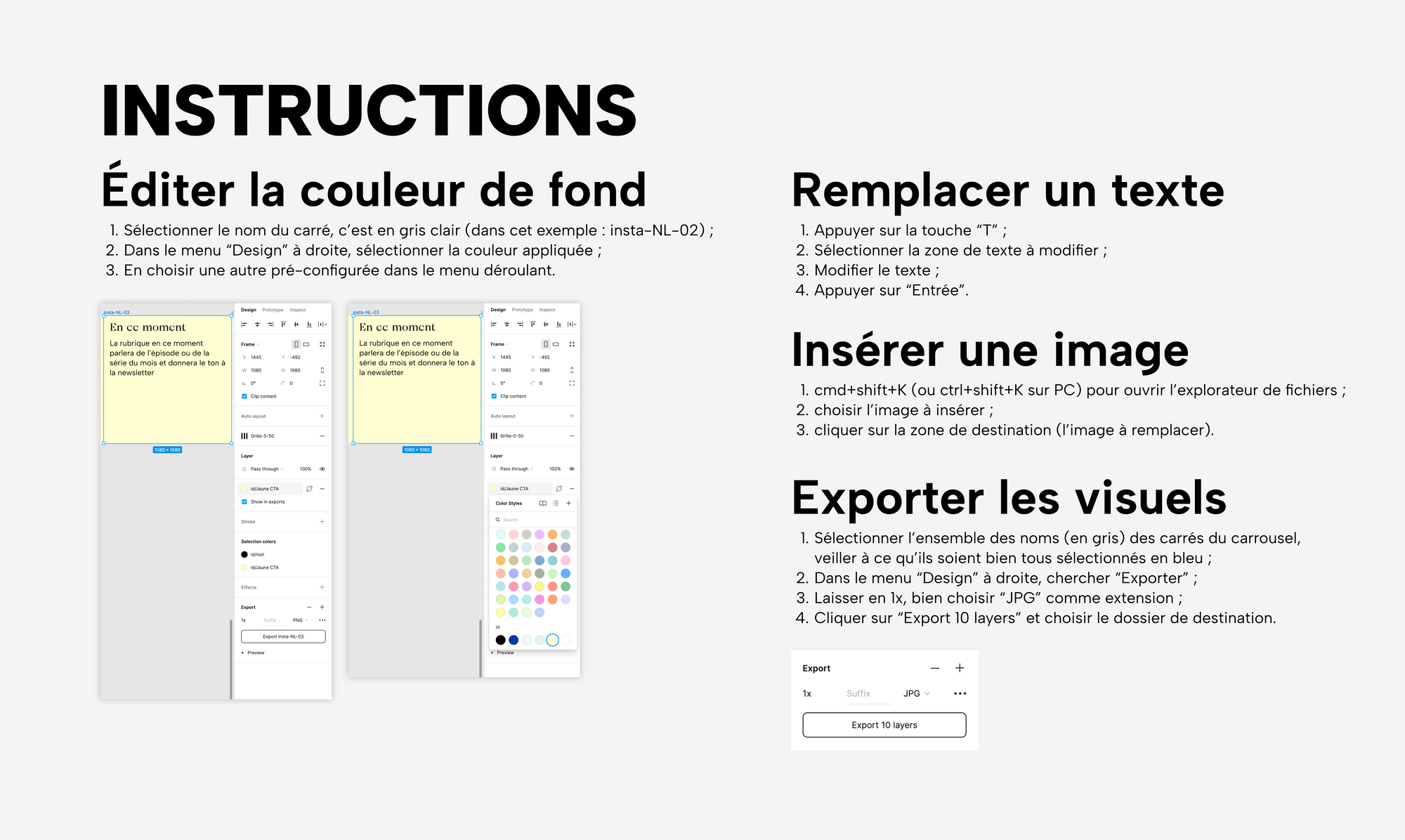
Color styles (which can include a grid here) let you change the background with one click.
- Built-in tools enhance the experience: you can quickly improve and colorize images, create gradients — without needing to open Adobe Photoshop, and these tools are complemented by a host of plugins that let you do virtually everything in Figma without having to resort to third-party software. This is where you'll find icon libraries or embedded free image banks, for example.
- The design mockup elements are directly translated into CSS — the web code that governs styling — which greatly simplifies the lives of developers.
- It's possible to prototype dynamic mockups: you can define interactive areas that respond to clicks and hover effects, just as the final integrated page would. Nothing beats this for getting a realistic preview and simultaneously validating both the visual design and the smoothness of the user experience.
- You can set up grids and guides to verify the precision of your work.
- Also: Figma is collaborative. You can work on multiple accounts on the same file, follow your colleague's cursor, leave comments — it borrowed the best features from Google's suite.
In a nutshell: it's software that lets you create a custom toolbox tailored to your needs, making it much easier to roll out and modify your work later. You can do this preparation and calibration work for someone else, which is something we often offer at Médianes, the studio.
Usage examples with our projects
- Figma makes it easier to create presentations than with somewhat limited tools like those offered by Office or Google suites. It's what we use for our sales presentation ;
- It's also possible to create visuals that you would previously have had to manage with Adobe InDesign: you can calibrate publications or stories for social media, where you only need to swap out the text and images, vary the colors — everything is pre-coded and adapted to content lengths;
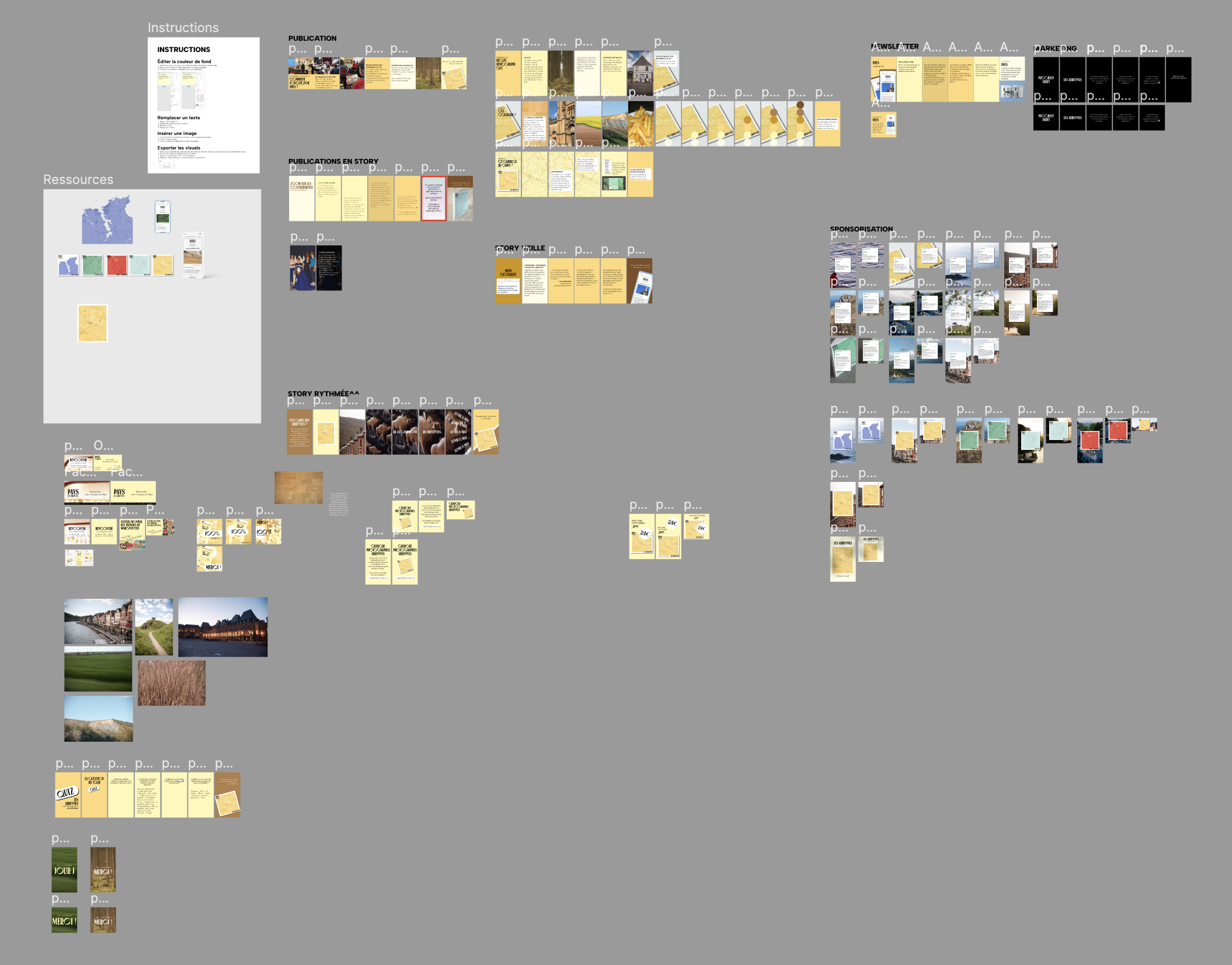
- You can imagine a communication campaign where you would need to personalize things (texts, images, QR codes…);
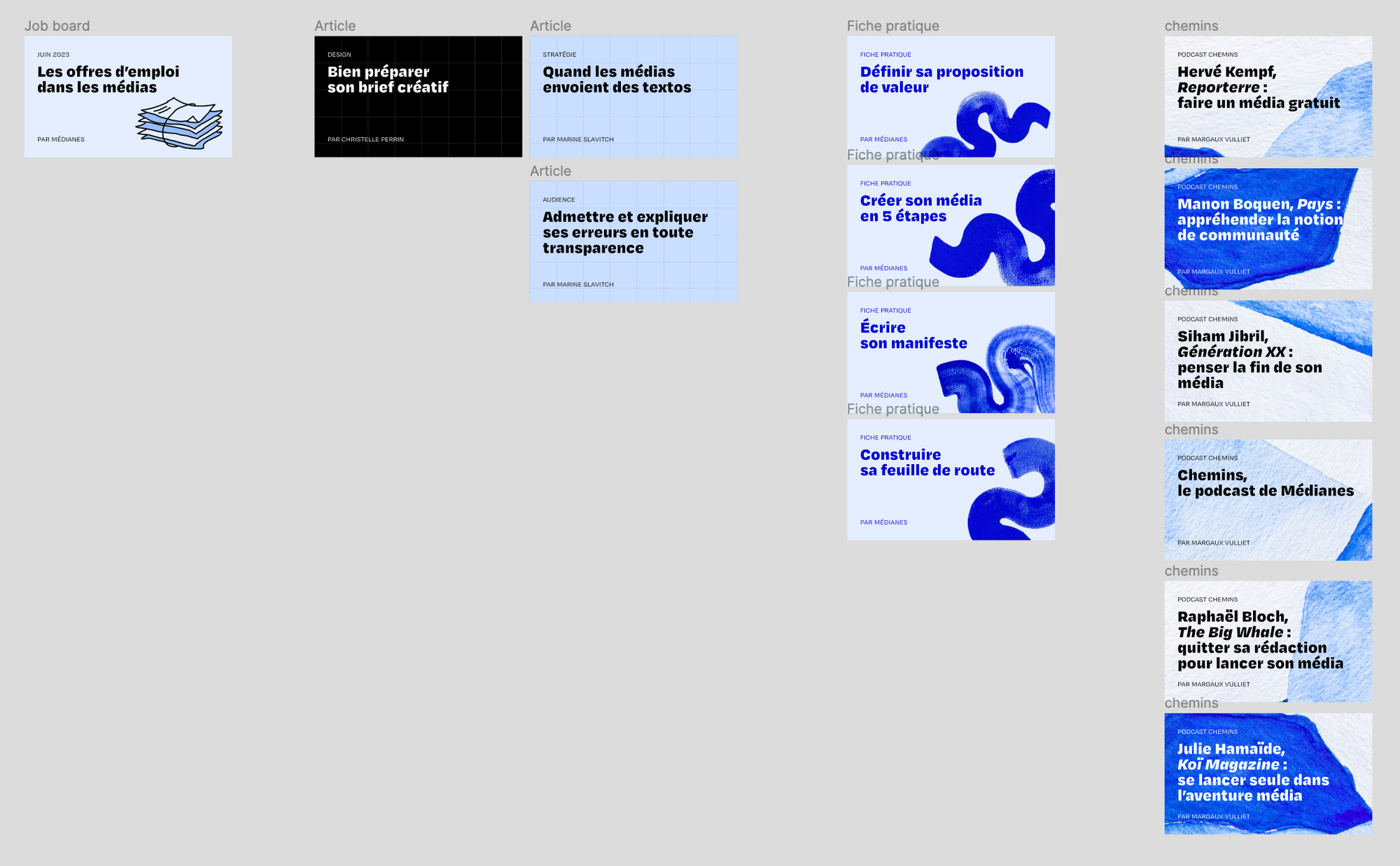
- Open Graph images to enhance your share links.
- Figma also handles vector graphics very well and could even be used to create logos or vector productions, though it's more basic than what Adobe Illustrator offers. It's possible to draw in Figma.
- You can also create screen mockups—more realistic renderings. All you have to do is replace the screenshot in the object, whether the mockup was created by your graphic designer or downloaded (from plug-ins—always them).
Example of a newsletter update in a phone mockup.
Do you think you need to develop a series of visual designs, and would you like some guidance to help you create templates? Contact us at the studio.
Practical Information
How much does it cost?
→ Figma, which Adobe acquired for a hefty sum in 2022, offers a free version that will only be a hindrance to companies that need to manage multiple team projects. This platform is ideal for individuals who need to create or edit visuals.
Is there an open-source equivalent?
→ Does the fact that Figma is owned by Adobe bother you? Check out its open-source competitor, Penpot.
Can you use Figma on Windows?
→ Figma can be used on the web or via a desktop app available for Mac, Windows, iOS, and Android.
Once my work is finished, how do I use it?
→ Work plans can be easily exported as PDF and SVG vector files, or as JPG or PNG images.
Is there any other software included with Figma?
→ Figma also includes FigJam, a competitor to Miro—a collaborative tool that works like a whiteboard with sticky notes.
Is it hard to get started with Figma?
→ While mastering the platform fully—to create complex items such as website mockups—requires a significant time investment, for a basic understanding that allows users to edit pre-formatted content, we provide a 15-minute video presentation and a guide showing how to modify blocks, which are sufficient.
Want to go further?
- Check out our previous articles to learn how to prepare a creative brief, understand technical typography terms, choose fonts, and ensure your illustrations complement your images. And don’t forget, of course, a key article on article formatting: Why So Much Bold Text?
- A few examples about readability, accessibility, hierarchy and structure, and practical cases to discover on my portfolio.


